Layouts and Batch View
The view switch in the graph header (Graph / Batch / Layout) changes what the centre of the window shows.
Batch View
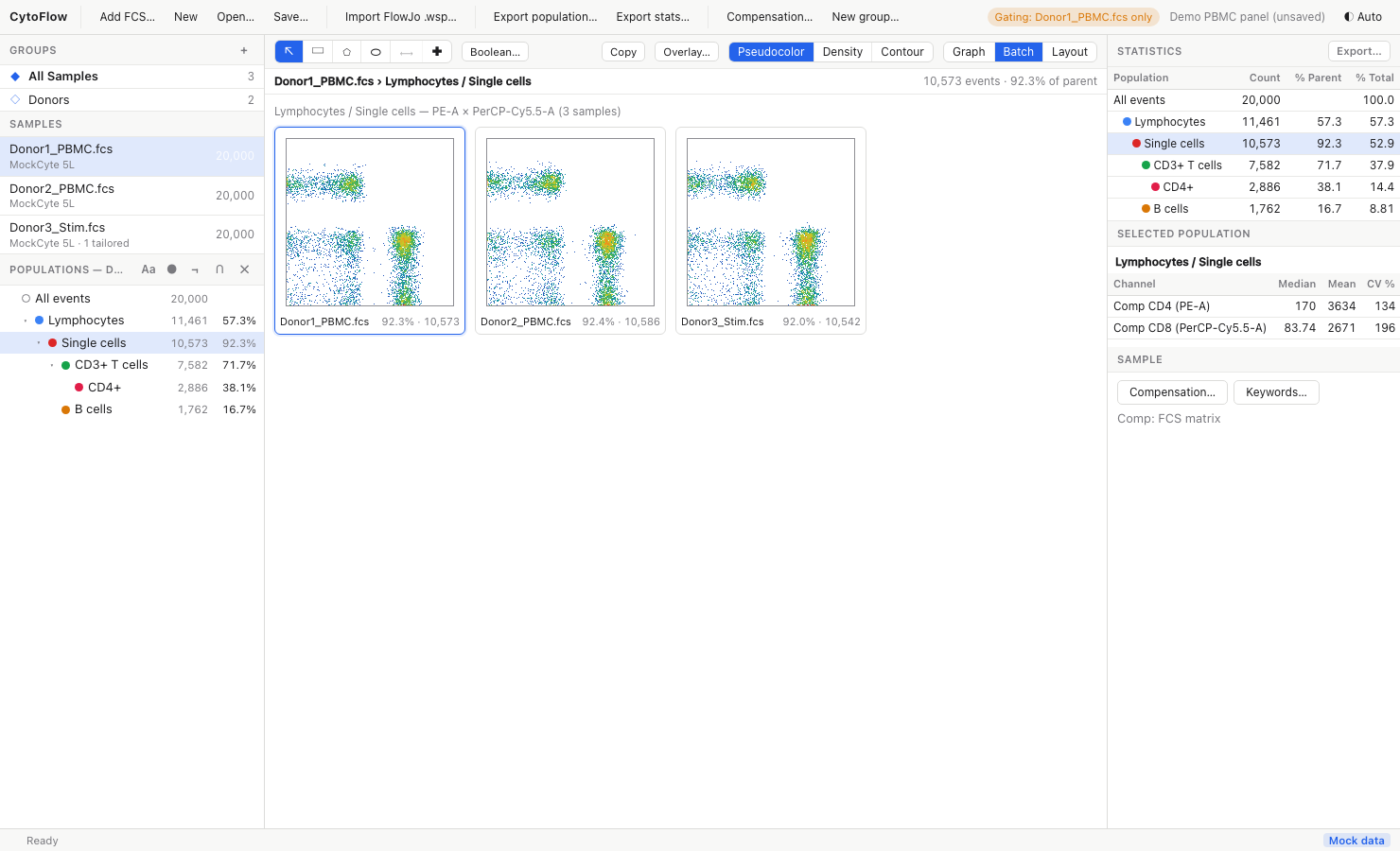
Batch shows the current plot (same X and Y channels, scales, population and plot type) for every sample as a grid of small plots, with the child gates drawn on each. Under each plot are the sample name and the population's % of parent and count.
- With a group selected, only its members are shown
- Samples whose FCS file is missing show "Not loaded"; samples that do not have the current population (for example a gate that exists only in another sample's tree) show "No such gate in this sample"
- Click a plot to open that sample in the graph window
The batch view updates whenever you change the axes, population, plot type or a gate, which makes it the quickest way to check that a group gate fits every sample before you tailor it.
Layout Editor
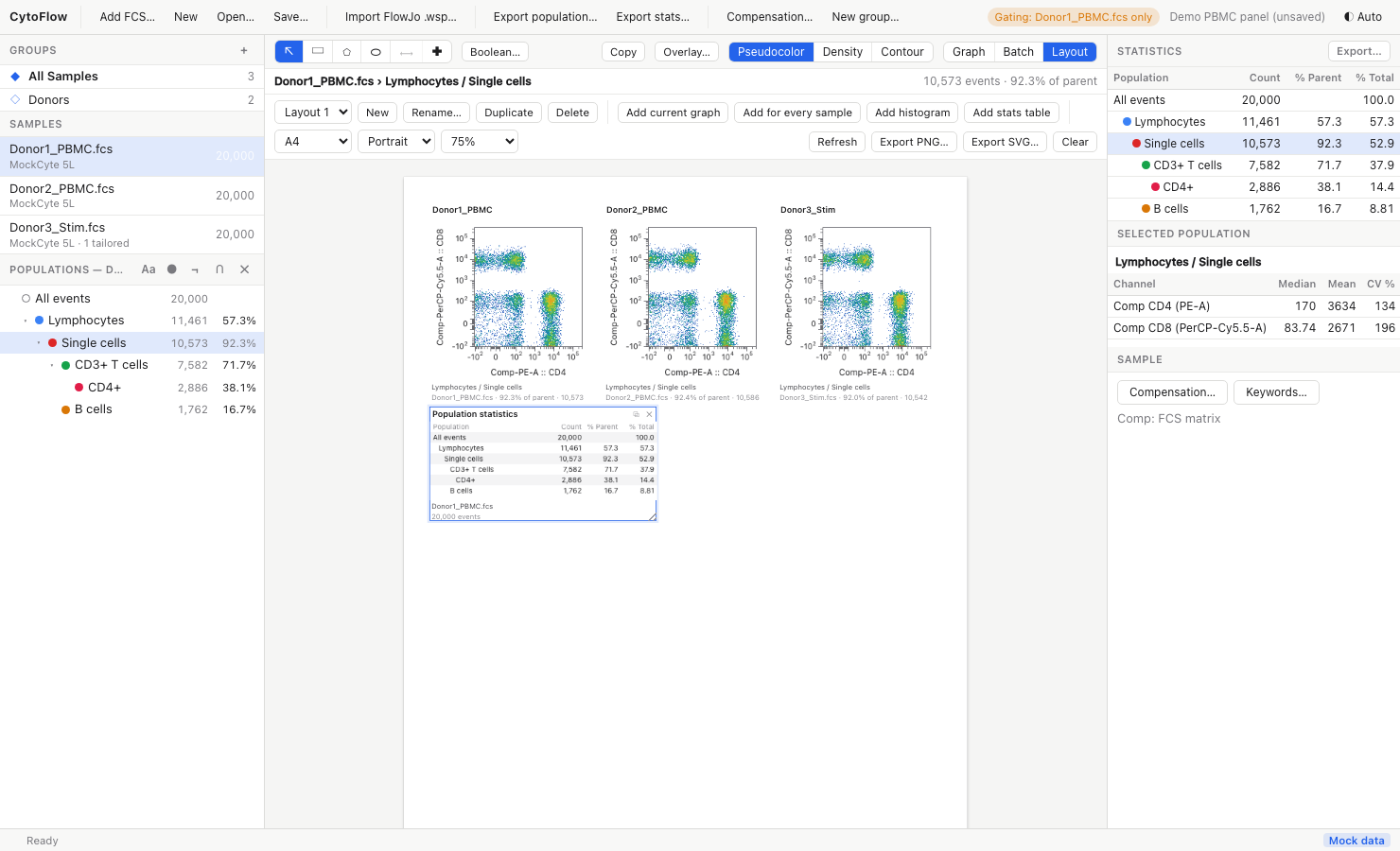
Layout opens a page editor for figures and reports. A layout is a printable page (A4 or Letter, portrait or landscape) holding panels; panels re-render from the live data, so they follow gate edits, scale changes and compensation.
Layouts of a workspace
A workspace can hold several named layouts. The bar at the top of the editor has:
- the layout menu, to switch between layouts
- New, Rename…, Duplicate and Delete
Layouts are saved in the workspace file together with the gates. Before the workspace has been saved to a file, they are also kept as a draft in the application, so they survive a restart.
Adding panels
| Button | Adds |
|---|---|
| Add current graph | The graph window's plot: sample, population, X/Y channels and plot type |
| Add for every sample | One plot per sample with the current axes and population, arranged in a grid below the existing panels (3 columns in portrait, 4 in landscape) |
| Add histogram | A histogram of the current X channel |
| Add stats table | The population statistics table of the current sample |
Each plot panel shows its child gates with their percentages, and a caption with the population path, sample name, % of parent and count.
Arranging panels
- Drag a panel to move it; drag the corner grip to resize it
- Click the title to edit it (an empty title shows the default, the sample or population name)
- ⧉ duplicates a panel, ✕ removes it; Delete / Backspace removes the selected panel
- Choose the page size (A4 / Letter), orientation (Portrait / Landscape) and on-screen zoom (50 % to 125 %)
- Refresh re-reads all panels from the current data; Clear removes every panel
Exporting a layout
- Export PNG… writes the page as a PNG image at twice the screen resolution (about 192 dpi), suitable for slides and documents
- Export SVG… writes the page as an SVG vector image, which you can edit in Inkscape, Illustrator or Affinity Designer and scale without loss
Pages are always rendered on a white background, whatever the application theme.