The Graph Window
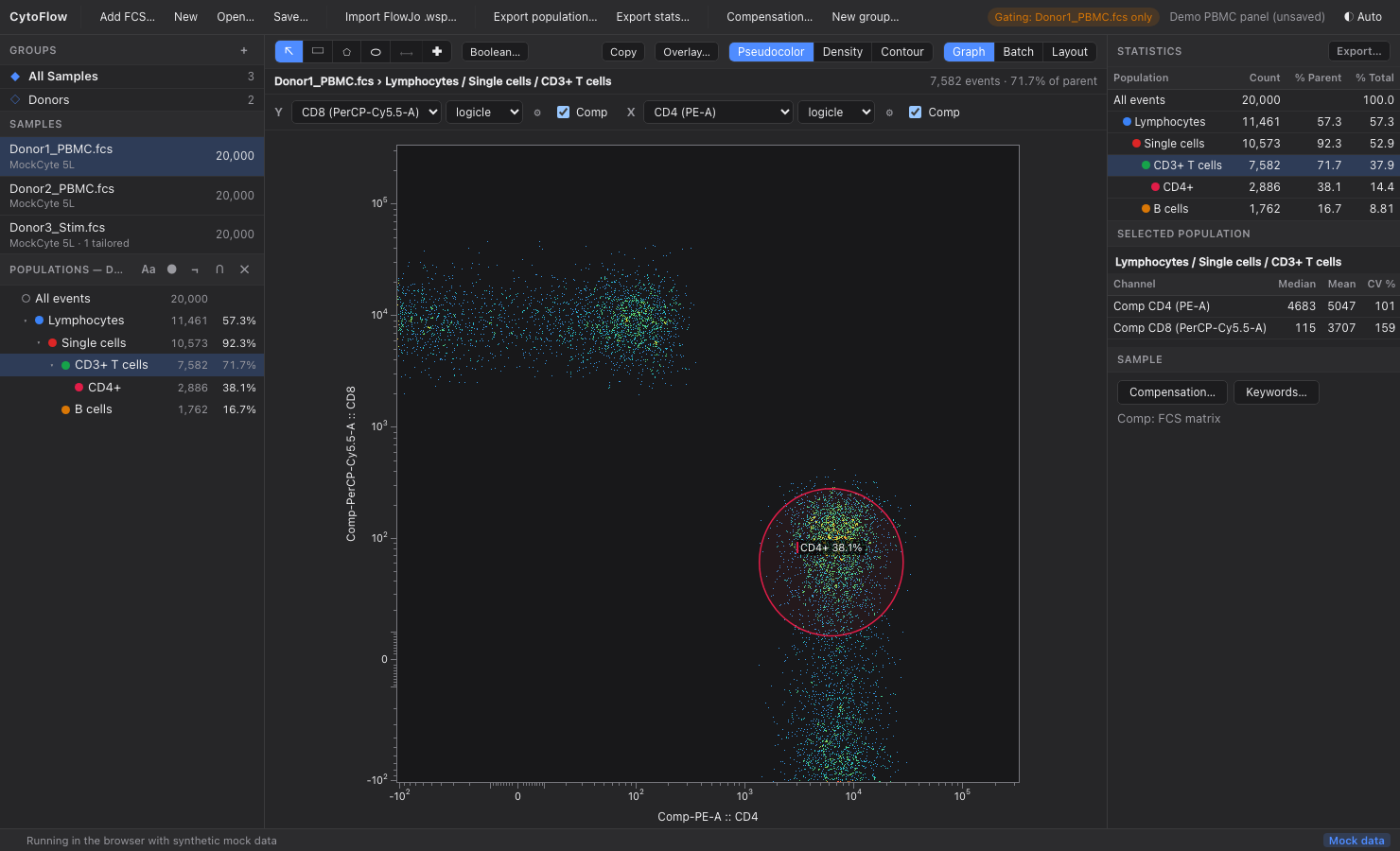
The centre of the main window plots the selected population of the selected sample. Its header holds the gate tools, the plot options and the view switch (Graph / Batch / Layout); below the header are the population path, the event counts and the axis controls.
Header and Counts
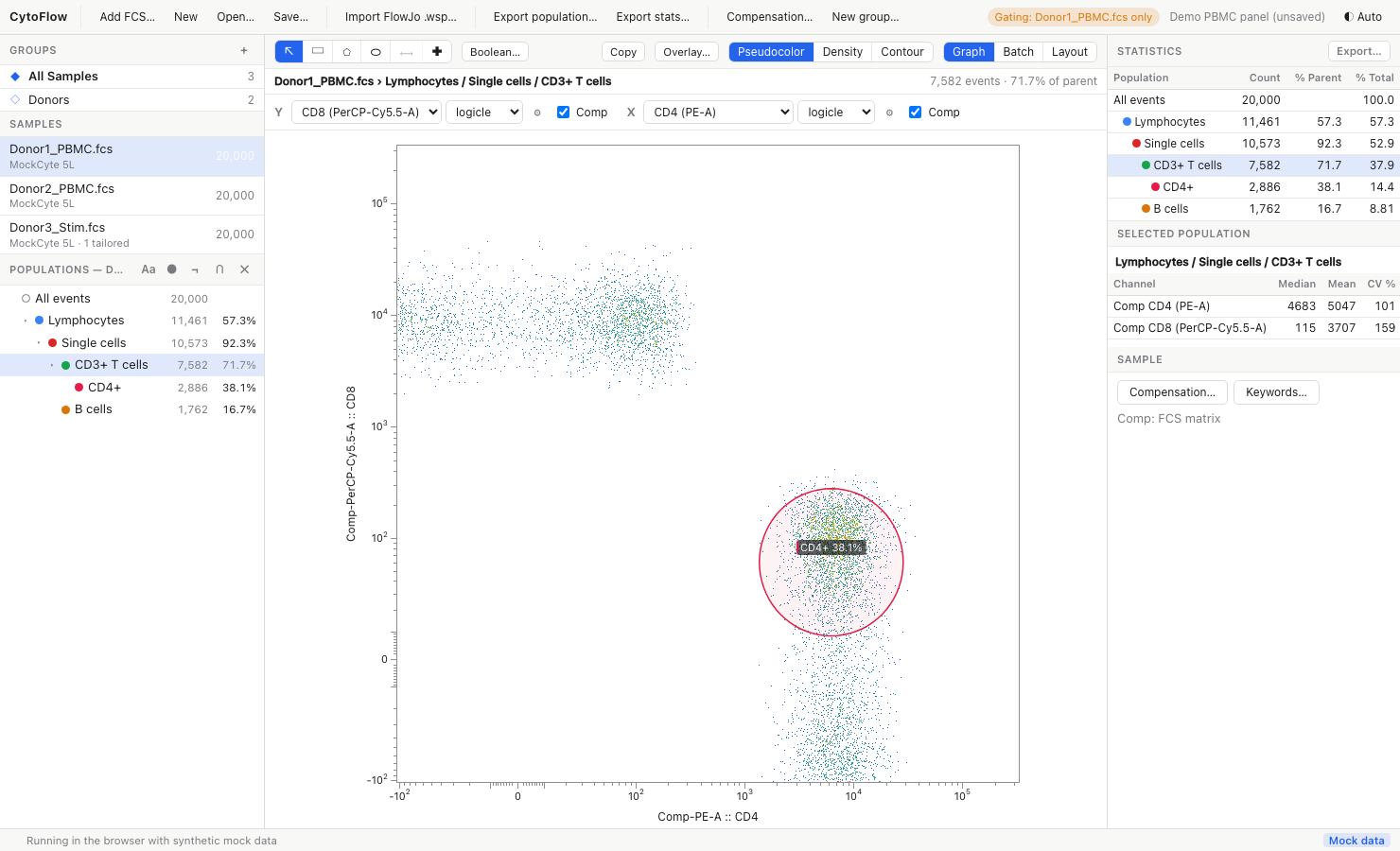
The line under the header shows the sample and the population path, for example Donor1_PBMC.fcs › Lymphocytes / Single cells / CD3+ T cells, and on the right the number of events in the population together with its parent population's count and the percentage of parent.
Choosing Channels
The Y and X controls each have a channel menu listing every parameter of the sample. Channels with a stain name ($PnS) are shown as stain (channel), for example CD4 (PE-A).
- Choose Histogram at the top of the Y menu to switch to a one-dimensional histogram of the X channel; choose a channel again to return to a 2-D plot.
- The axes you last used are remembered per sample and saved in the workspace.
Axis Scales
Each axis has a scale menu. Every scale maps the instrument range onto a display range of about 0 to 1, and gates are stored in that display space, so changing a scale re-maps the existing gates on that channel: a gate keeps selecting the same events, it is only drawn differently.
| Scale | Use it for | Parameters (⚙) |
|---|---|---|
| linear | Scatter (FSC/SSC) and Time | T top of scale, A offset below zero |
| log | Uncompensated fluorescence without negative values | T top of scale, M decades |
| asinh | Fluorescence, mass cytometry | T top of scale, M decades, A extra negative decades |
| logicle | Compensated fluorescence (default for fluorescence channels) | T top of scale, W linear width in decades, M decades, A extra negative decades |
| biex | FlowJo's biexponential scale (for workspaces coming from FlowJo) | T top of scale, Width basis (≤ 0, e.g. −100), Pos positive decades, Neg extra negative decades |
The scale formulas follow Gating-ML 2.0: linear (x + A) / (T + A), log log10(x / T) / M + 1, the Gating-ML arcsinh, and the logicle of Parks, Roederer & Moore (2006). The biex scale reproduces FlowJo's biexponential display (verified against a table exported by FlowJo, see Validation).
Defaults
When you choose a scale, its parameters are estimated from the plotted sample:
- T is the channel's range (
$PnR), or 262144 if the file does not give one; - M (decades) is 4.5;
- for logicle, W is estimated from the 5th percentile of the channel's negative values, as recommended by Parks et al. (
W = (M − log10(T / |r|)) / 2), or 0.5 if there are fewer than 10 negative events; - for biex, width basis −100, 4.5 positive decades, no extra negative decades.
New samples start with linear on scatter and Time channels and logicle on everything else.
Editing parameters
Click ⚙ next to the scale menu to open the parameter popover. Type new values and click Apply (or press Enter); Defaults re-estimates them from the data.
Per-sample scales
With a sample selected, scale changes apply to that sample only (an override). With a group selected, they change the workspace default, which every sample without an override uses. Choosing the default scale for a sample removes its override.
Tick marks are placed at decades (10², 10³, …, and their negatives on logicle / asinh / biex axes) with minor ticks in between.
Compensation
Each axis has a Comp checkbox. When ticked, the plot (and any gate you draw on it) uses compensated values; the axis label then reads Comp-<channel>. Fluorescence channels are compensated by default when a matrix is active; scatter and Time channels never are. The checkbox is disabled when compensation is off.
Choose the compensation source with Compensation… (toolbar or right column):
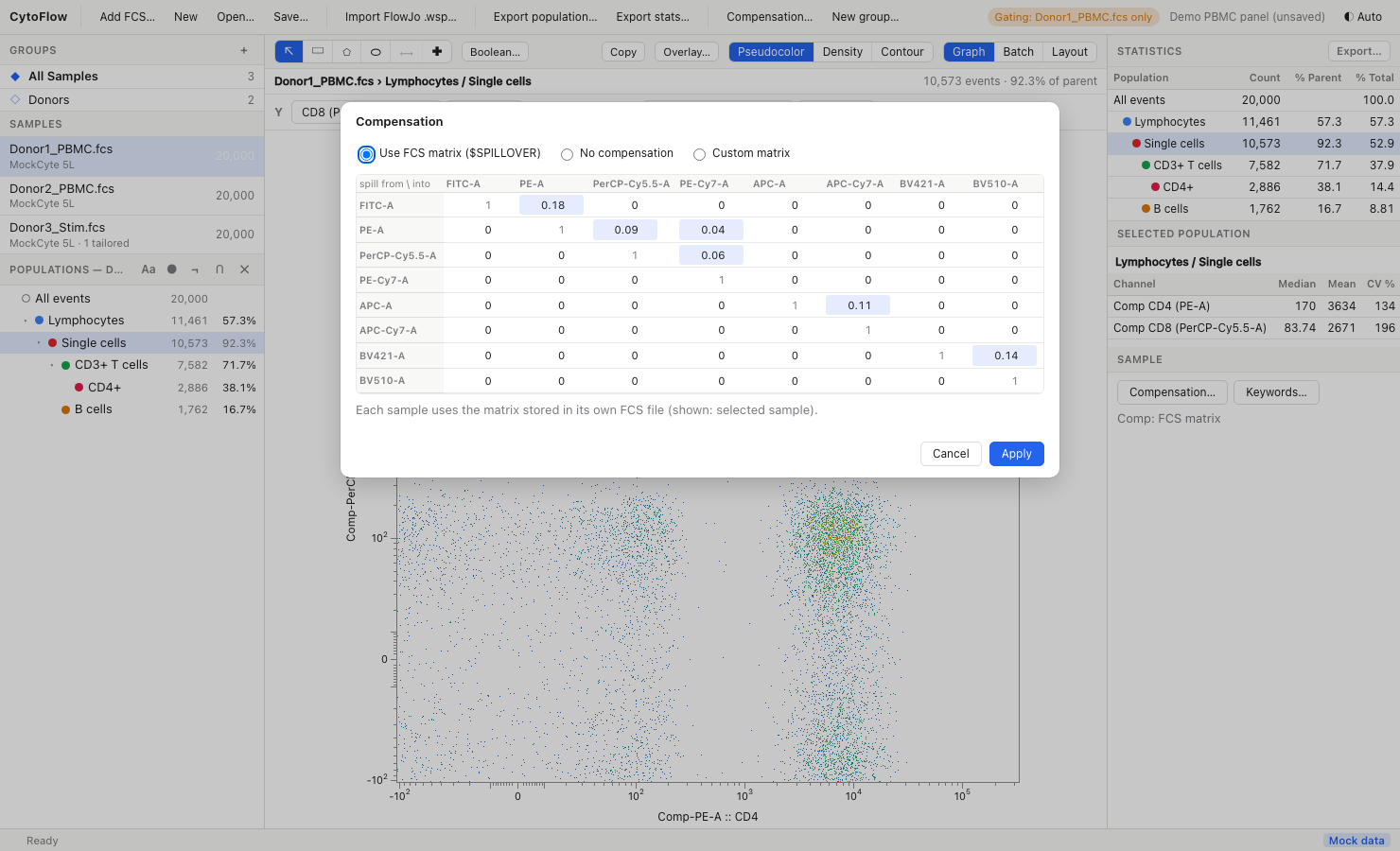
- Use FCS matrix ($SPILLOVER): each sample uses the spillover matrix stored in its own FCS file (
$SPILLOVER,SPILL,$COMP). Disabled if the file has none. - No compensation: compensated axes are disabled.
- Custom matrix: one matrix applied to every sample. Editing any cell of the grid switches to this mode. Rows are the fluorochromes that spill, columns the detectors they spill into; off-diagonal non-zero cells are highlighted.
Compensated values are computed as raw · S⁻¹, where S is the spillover matrix. The current source is shown under the right column's Compensation… button.
Plot Types
For 2-D plots, choose one of:
- Pseudocolor: every event as a dot coloured by the local density (blue = sparse, red = dense). Up to 60,000 events are drawn (evenly sub-sampled); the density colouring always uses every event
- Density: a binned density map
- Contour: density contour lines
Histograms are drawn as a filled outline of event counts over 256 bins. The plot type is disabled while an overlay is active.
Zoom and Pan
| Action | Gesture |
|---|---|
| Zoom in / out around the cursor | Mouse wheel (or two-finger scroll / pinch on a trackpad) |
| Pan | Right-click and drag, middle-click and drag, or hold Space and drag with the left button (a right-click without dragging still opens the gate menu) |
| Reset the view | Press 0, click Reset view, or double-click an empty area of the plot |
Zooming only changes what part of the display range you see: it does not change the axis scale, the gates or the statistics. The plot is re-binned at full resolution for the visible window (after a short delay), the axis shows round-value ticks, and the header adds "K in view". Histograms zoom along X only; the view resets when you change channels, and batch thumbnails, layout panels and SVG exports always show the full range. You can draw and edit gates while zoomed in, which helps with small populations.
Showing Parent Events
When you are looking at a sub-population, tick Show parent events to draw, in grey underneath, the events of the parent population that are not in the current population. This shows where the current gate cut the parent, like the "show excluded points" option of the old Flow Cytometry Analyzer.
Overlays
Click Overlay… to draw several populations and/or samples on the same axes:
- Tick the populations (of the plotted sample's tree) and the samples to show. Every ticked population is drawn for every ticked sample; the current sample and population are always included
- Click Apply
Up to 12 series are drawn, each in its own colour with a legend. An overlay bar appears above the plot:
- for 2-D plots, choose Contours or Dots;
- for histograms, choose the normalisation: % of max (each curve scaled to its own maximum), % of total (fraction of the series' events) or Count (raw counts).
Edit… reopens the picker; Clear (or Remove overlay in the picker) returns to a single plot. The overlay selection is saved in the workspace.
Copying a Plot
Click Copy to copy the current plot, including its gates, axes and labels, to the clipboard as a PNG image, ready to paste into a document or slide. If the clipboard is not available, a save dialog offers to write the PNG to a file instead.
For publication figures with several panels, use the layout editor, which exports PNG and SVG.
Themes
The theme button at the right end of the toolbar cycles through Auto (follows the operating system's light / dark setting), Light, Dim and Dark. The choice is remembered between sessions. Plots, gate labels and the batch view follow the theme; layout pages are always rendered on white paper.