User Guide
This guide explains how to use CytoFlow.rs to gate and analyse your FCS files. This page gives a tour of the window and a first analysis; the pages that follow cover each part in detail.
- Workspace and samples - samples, groups, the population tree, tailored gates, keywords, saving
- The graph window - channels, axis scales, compensation, plot types, zoom and pan, overlays, copying plots
- Gating - every gate tool, editing gates, Boolean gates, naming
- Statistics and export - the statistics tables, exporting events and statistics
- Layouts and batch view - small multiples across samples and printable pages
- Importing FlowJo workspaces - what is imported and how closely counts agree
- Keyboard shortcuts
Understanding the Interface
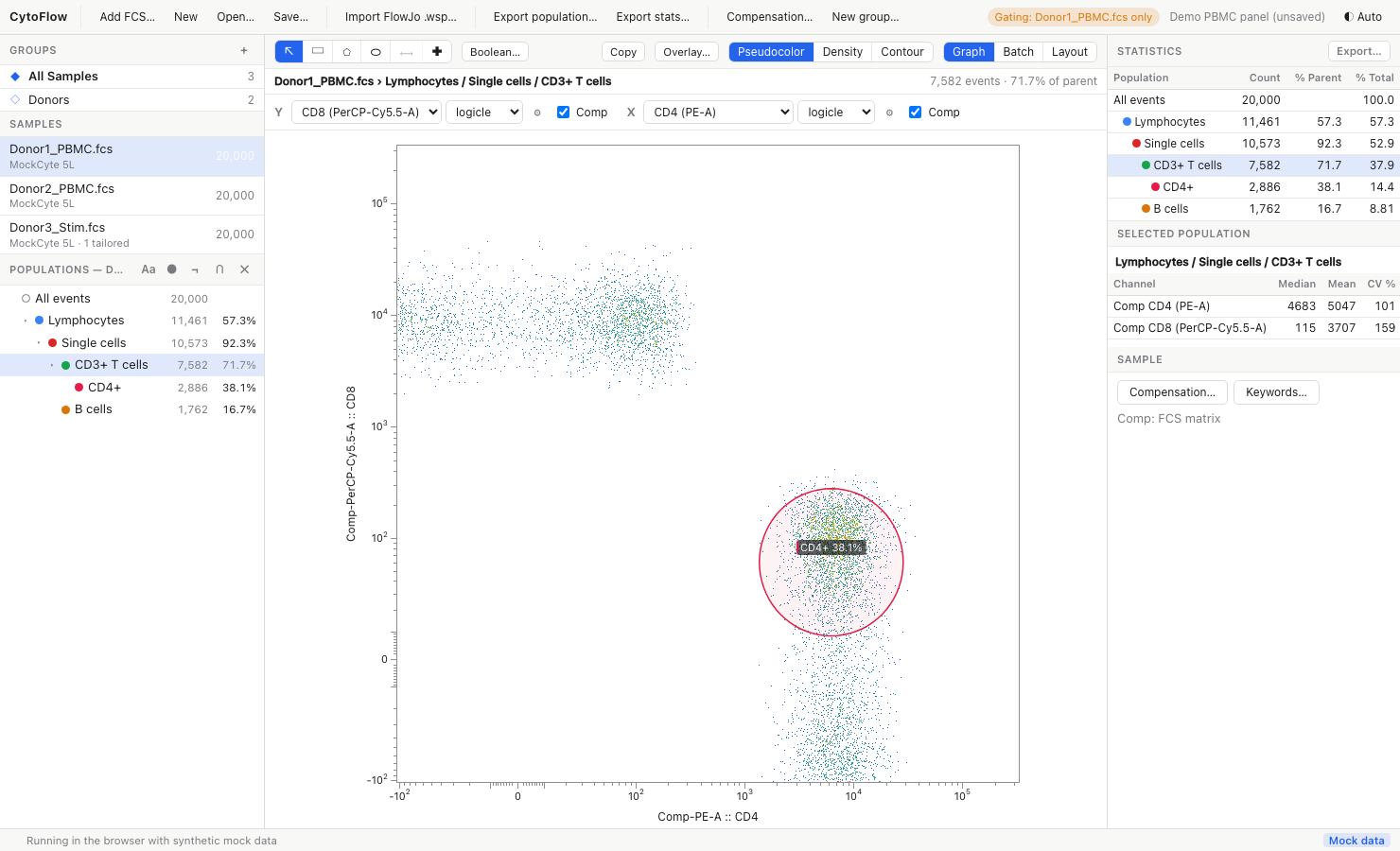
The main window consists of:
- Toolbar (top): Add FCS…, New, Open…, Save…, Import FlowJo .wsp…, Export population…, Export stats…, Compensation…, New group…; on the right, the gating scope pill (where new gates go), the workspace name and the theme button
- Left column: the Groups list, the Samples list and the Populations tree of the selected group or sample, with buttons to rename (Aa), recolour (●), negate (¬), combine (∩, Boolean gate) and delete (✕) the selected population
- Centre: the graph window. Its header holds the gate tools, Boolean…, Copy, Overlay…, the plot type (Pseudocolor / Density / Contour) and the view switch (Graph / Batch / Layout). Below it, the sample and population path, the event counts, and the Y and X axis controls (channel, scale, ⚙ scale parameters, Comp checkbox)
- Right column: the Statistics table for every population of the plotted sample, the Selected population channel statistics, and Compensation… / Keywords… buttons for the sample
- Status bar (bottom): progress, results and error messages
Basic Workflow
Step 1: Load Your Data
Click Add FCS… (or press Cmd+O on macOS, Ctrl+O on Windows/Linux) and select one or more FCS files. Each file appears under Samples with its cytometer name and event count. Click a sample to plot it.
The first time a sample is shown, CytoFlow.rs picks two channels for you (scatter channels on linear axes, fluorescence channels on logicle axes). You can also drop files on the command line, see Installation.
Step 2: Choose Channels and Scales
Use the X and Y channel menus above the plot. Choose Histogram in the Y menu for a one-dimensional histogram of the X channel. Pick a scale (linear, log, asinh, logicle, biex) next to each channel; the ⚙ button opens its parameters. See The graph window.
Step 3: Draw a Gate
- Pick a tool in the graph header, or press its key: R rectangle, P polygon, L lasso, E ellipse, Q quadrants, G range (histograms)
- Draw on the plot. For the lasso, hold the left button and trace around the cells; releasing the button closes the shape
- Name the population in the dialog that appears (a default such as "Gate 1" is suggested) and press Enter
The gate is created as a child of the population you are looking at, and the new population is selected so that you can keep gating inside it. See Gating.
Step 4: Gate Further
Each gate is a node in the Populations tree. Only the events inside all the gates on the path from "All events" to a population belong to it, which is how successive gates are combined. Click any node to plot its events; press Alt+Left or right-click an empty part of the plot and choose Back to parent population to go up one level.
Step 5: Read Statistics and Export
The Statistics panel shows the count, % of parent and % of total of every population, and Selected population lists the median, mean and CV of the plotted channels. Use Export population… to write the selected population's events to CSV, Excel or Parquet, and Export stats… for a table of every sample and population. See Statistics and export.
Step 6: Save Your Work
Press Cmd+S (Ctrl+S) to save the workspace as a *.cfw.json file. It stores the sample paths, groups, gates, scales, compensation, layouts and the last view of each sample, but not the event data, so keep the FCS files where they are. See Workspace and samples.
Tips and Best Practices
- Start with scatter: gate cells on FSC-A vs SSC-A, then singlets on FSC-A vs FSC-H, then move to fluorescence channels
- Use logicle or biex for fluorescence: compensated data has negative values that log axes cannot show
- Gate on a group: select a group before drawing to apply the same gate to all of its samples, then tailor individual samples where needed
- Zoom for precision: zoom in (mouse wheel) before drawing a small or tight gate, then press 0 to reset the view
- Check the batch view: switch to Batch to see the same plot and gate for every sample at once
- Save often: the workspace file is small and quick to write